
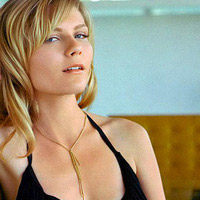

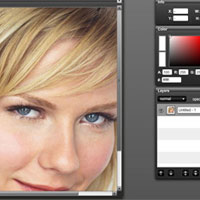
Well this tutorial is here to help that problem by boosting the colors using Channels and Lab Color.
Click the launch video button below to view.
Roll over image to see original.


A couple tips:
Tip #1: If you find that this enhancement is a bit too strong for your photo then there's a way to fix that. First you need to select the entire image by click Ctrl + A then hit Ctrl + C to copy the image. Go back to the original version of the image and paste it by hitting Ctrl + V. This adds it as a new layer to the original and you can change the opacity of the layer in the layers panel but using the opacity slider.
Tip #2: Like I mention in the tutorial, Channel A represents Green and Red colors while Channel B represents Blue and Yellow colors. If you feel that there is already in enough red in the photo, say in someone's skin, you can just add the adjustment to the B channel to add some yellow to the skin to help neutralize the red.











16 Responses
Great tutorial, really easy and great result.
THANK YOU SO MUCH!
[...] Boosting Color To Make People Look Healthly [...]
[...] Colour boost! Easy steps to make all your images better! 22 10 2008 Original Author: Photoshop Girl Link To Tutorial: Here (Not located on this blog) [...]
Boosting Color in Your Photos - photoshopgirl.com…
Have you ever thought “this is a good photo but it’s a little dull”? Well this tutorial is here to help that problem by boosting the colors using Channels and Lab Color….
i dont see any advantage than using:
huge/saturation -> blendingmode: saturation
or
channel mixer -> Red= 150%R -25%G -25%B
Green= -25%R 150%G…..
Fantastic!
simple and nice effect Thank for sharing!
Tutorial of Boosting Color in Your Photos is very simple and useful…
Itz a Nice effect
Really easy and great result. Well this tutorial is here to help that problem by boosting the colors using Channels and Lab Color. Easy steps to make all your images better.
This tutorial is here to help that problem by boosting the colors using Channels and Lab Color. Great tutorial. Thank you.
I’ve been exploring for a bit for any high-quality articles or weblog posts in this sort of area . Exploring in Yahoo I eventually stumbled upon this site. Reading this info So i am glad to express that I have an incredibly just right uncanny feeling I discovered exactly what I needed. I such a lot undoubtedly will make certain to do not omit this site and provides it a look regularly.
[...] Boosting Color To Make People Look Healthly [...]
I needed. I such a lot undoubtedly will make certain to do not omit this site and provides it a look regularly.
Lol the photo seems a little “hotter”, like you turned up the temperature!!
I’ll try this tip out with my next photo. Thanks!